The year is 2026, and Wuthering Waves has evolved into a sprawling gacha epic with more characters than a Marvel movie. But there's one thing that hasn't changed: the dreaded UE4 Fatal Error crash, which still ambushes PC players like a jump scare in a horror game. Our poor hero, the intrepid gamer, just wants to explore Solaris-3, but instead, they're staring at a cryptic error message that might as well be written in ancient Tacetite script. Well, butter my biscuits and call me a Lifer, because this crash is a stubborn mule. But fear not, dear reader, for there are fixes. And they're not as painful as fighting a Level 100 Crownless with a level 1 character.
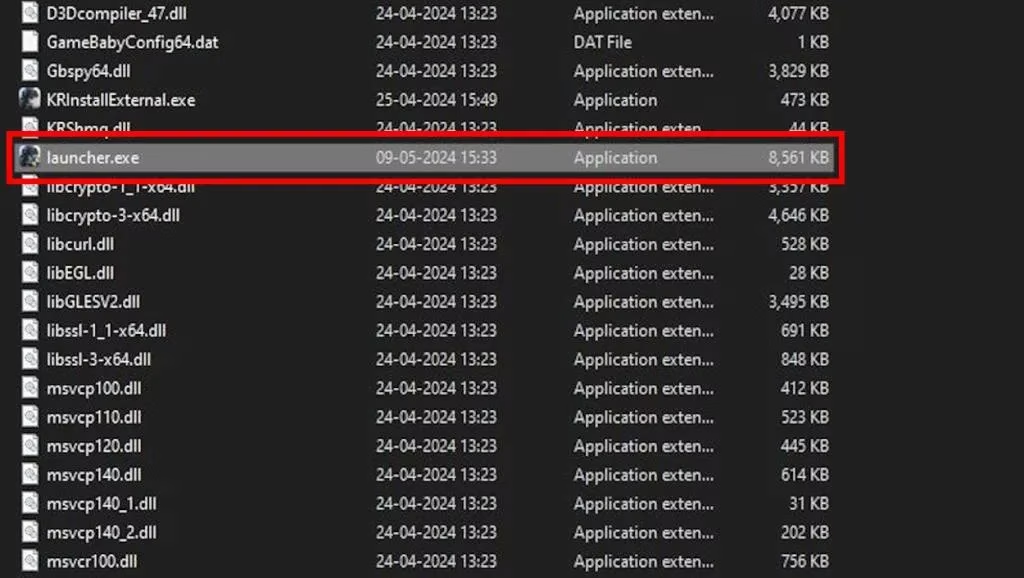
Fix 1: Run the Launcher Directly (Yes, Really)
One of the most bizarre yet effective solutions is to bypass the Epic Games Store launcher entirely. The UE4 Fatal Error seems to have a personal vendetta against Epic's launcher, like a grudge that spans multiple timelines. Many players have reported that simply running the Wuthering Waves launcher directly from the game's install folder fixes the crash. The launcher exe should be sitting right there in the install location, probably feeling lonely and neglected.
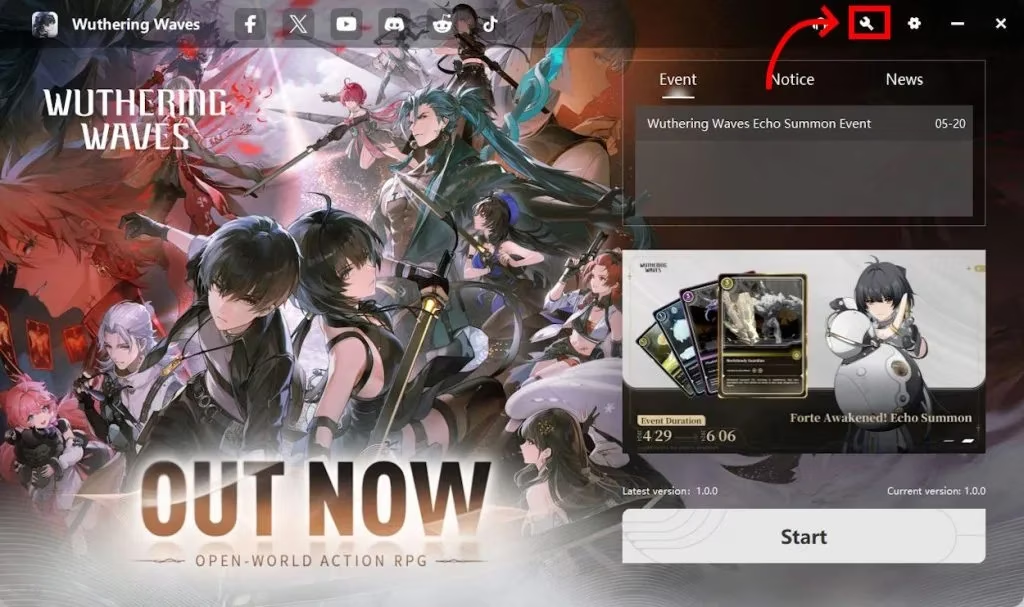
Why does this work? Nobody knows. Game development is a finicky thing, and sometimes the universe just wants you to take the scenic route. But hey, if it works, it works. Our hero can confirm that this step alone minimized crashes significantly.
Fix 2: Verify Game Files (The Digital Equivalent of Turning It Off and On Again)
Corrupted game files are like weeds in a garden—they pop up out of nowhere and ruin everything. Fortunately, the launcher has a built-in tool to verify and repair your files. Here's how to do it:
-
Open the launcher.
-
Click on the spanner icon 🔧 in the top-right corner.
-
A pop-up will appear, asking you to confirm. Hit that confirm button like you're smashing a piñata.
-
Let the launcher do its thing. It will scan your files and download any fixes for corrupted ones.
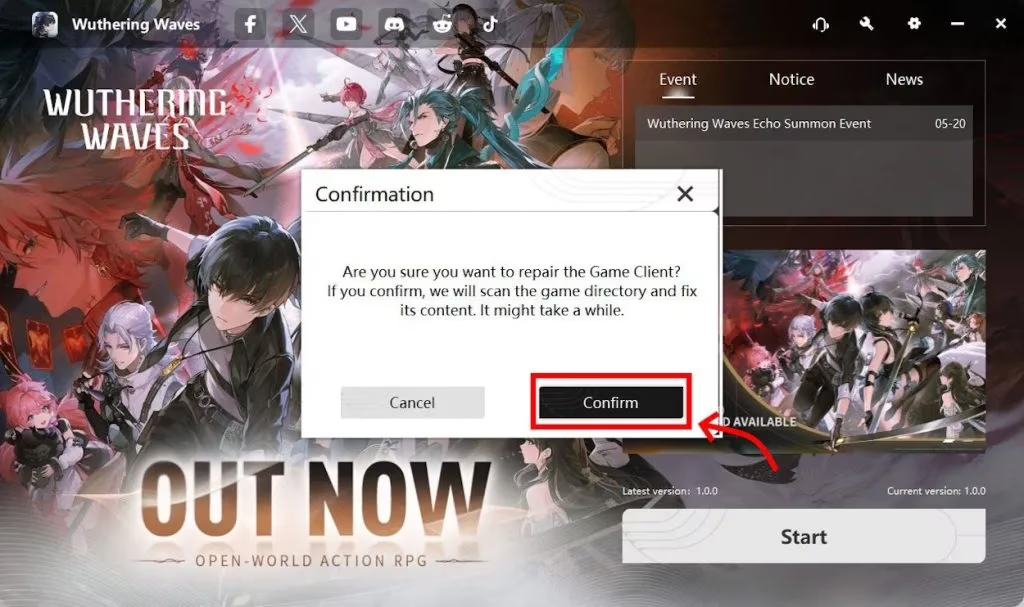
This should fix the problem and allow you to run Wuthering Waves without crashes. It's a general fix, too—other Unreal Engine games throw similar tantrums.
Fix 3: Update DirectX (Because Your PC Is Not a Museum)
If your DirectX is outdated, it can prompt Unreal Engine games to throw this error. Think of DirectX as the translator between your game and your graphics card. If the translator is speaking ancient Sumerian, things get lost in translation. Head to the official Microsoft website and download the latest DirectX redistributable driver. Install it, run the game, and hope for the best.
Fix 4: Update Your Graphics Drivers (Your GPU Deserves Some Love)
This is a no-brainer, but it's surprising how many people neglect it. As of 2026, both AMD and NVIDIA have rolled out numerous driver updates that include stability fixes for Wuthering Waves and other UE4 titles. Your graphics driver, feeling neglected, might decide to throw a tantrum. So, update it. If you're on AMD, head to their official website. If you're on NVIDIA, do the same. It's like giving your GPU a spa day—it'll thank you with smoother frames.
Fix 5: Force DirectX 11 via Steam (The Sneaky Workaround)
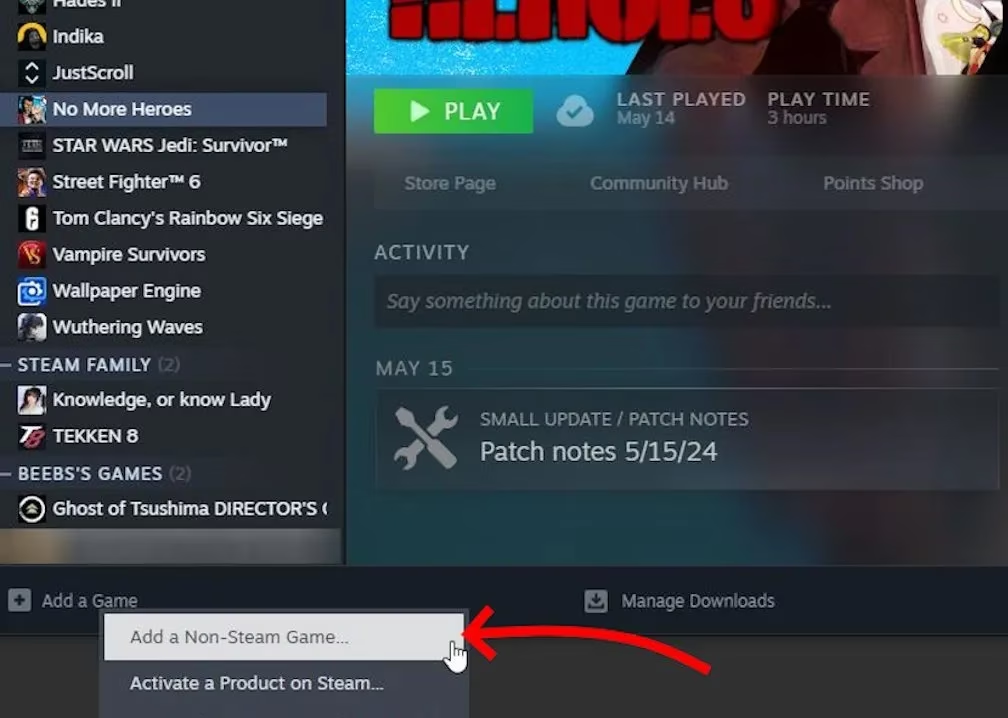
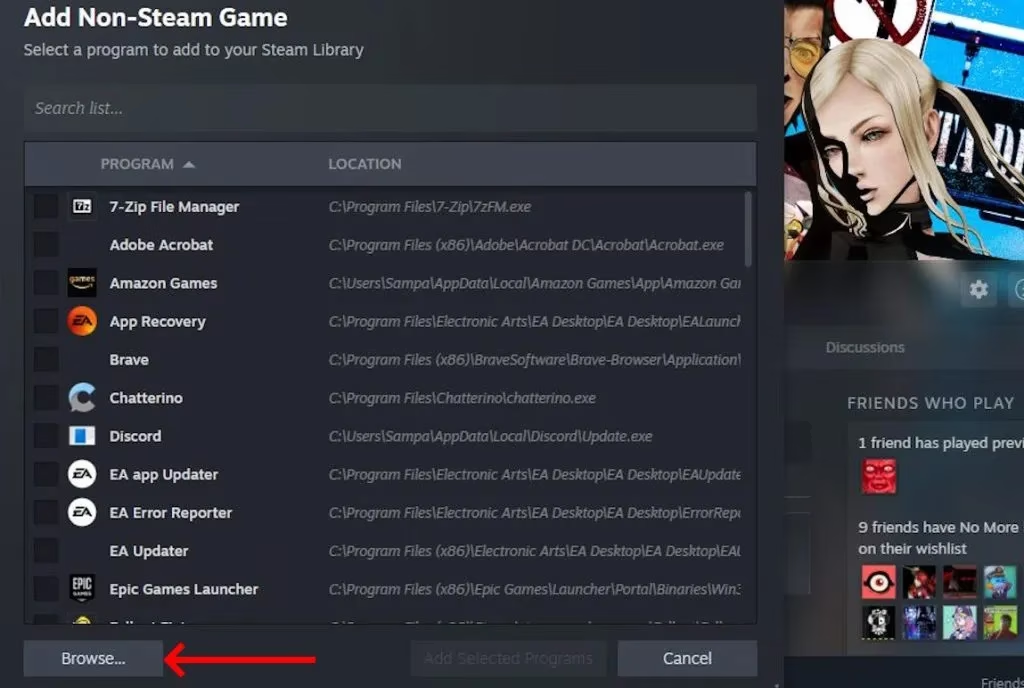
Here's a clever trick: force the game to run in DirectX 11 by adding it as a non-Steam game and using launch options. The game isn't on Steam, but that doesn't stop us from bending Steam to our will. Follow these steps:
-
Open Steam. Click "Add a Game" at the bottom-left, then select "Add a Non-Steam Game".
-
In the pop-up, click "Browse". Don't add the launcher shortcut—that's a separate beast.
-
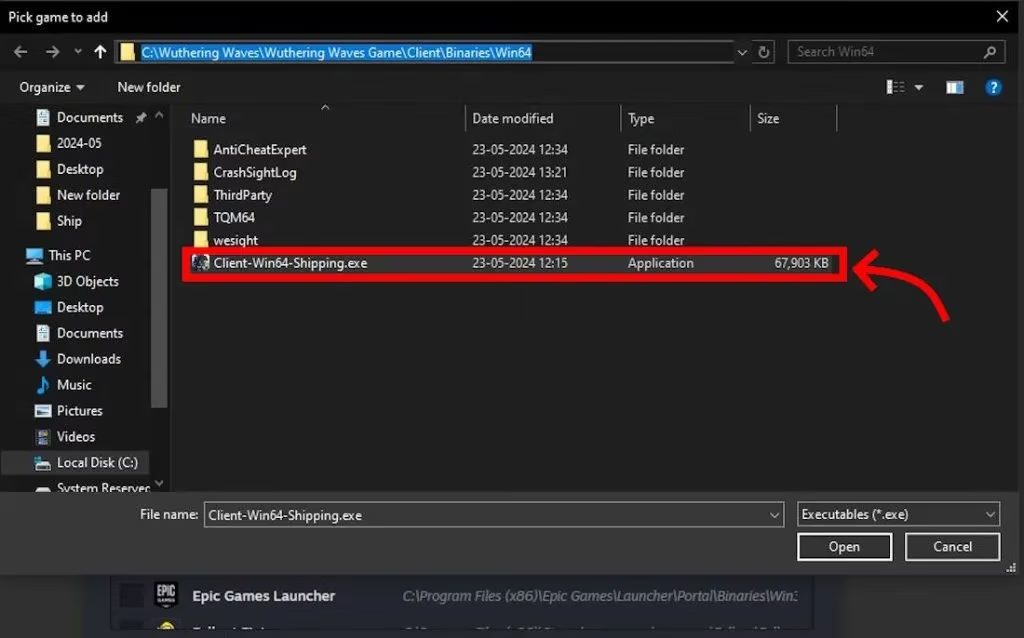
Navigate to your Wuthering Waves install location. Then go to
Wuthering Waves Game > Client > Binaries > Win64and selectClient-Win64-Shipping.exe. -
Restart Steam, right-click on the Wuthering Waves icon, and select "Properties".
-
Under "Launch Options", type
-dx11. This forces the game to run in DX11.
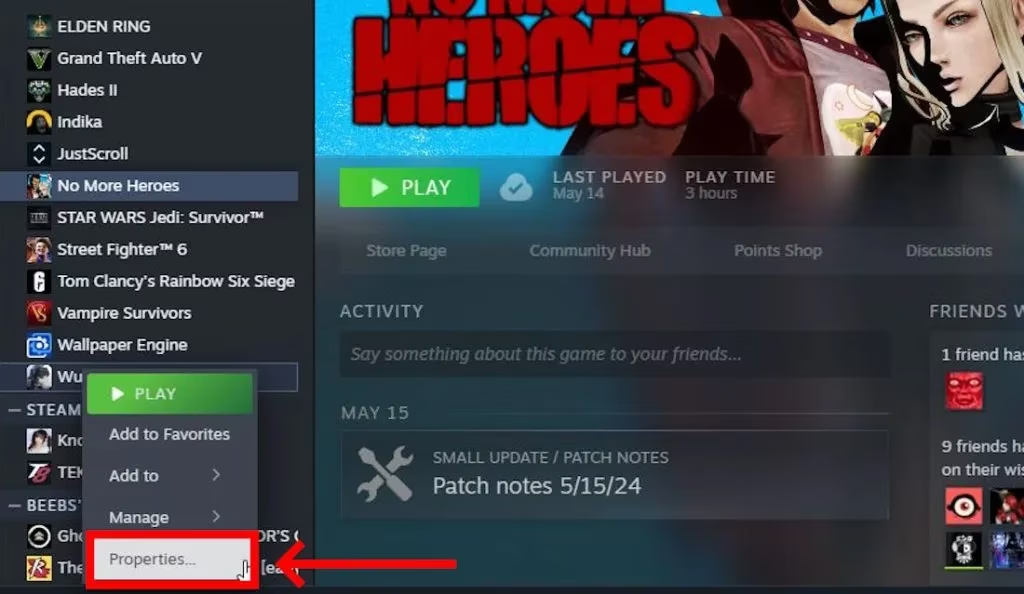
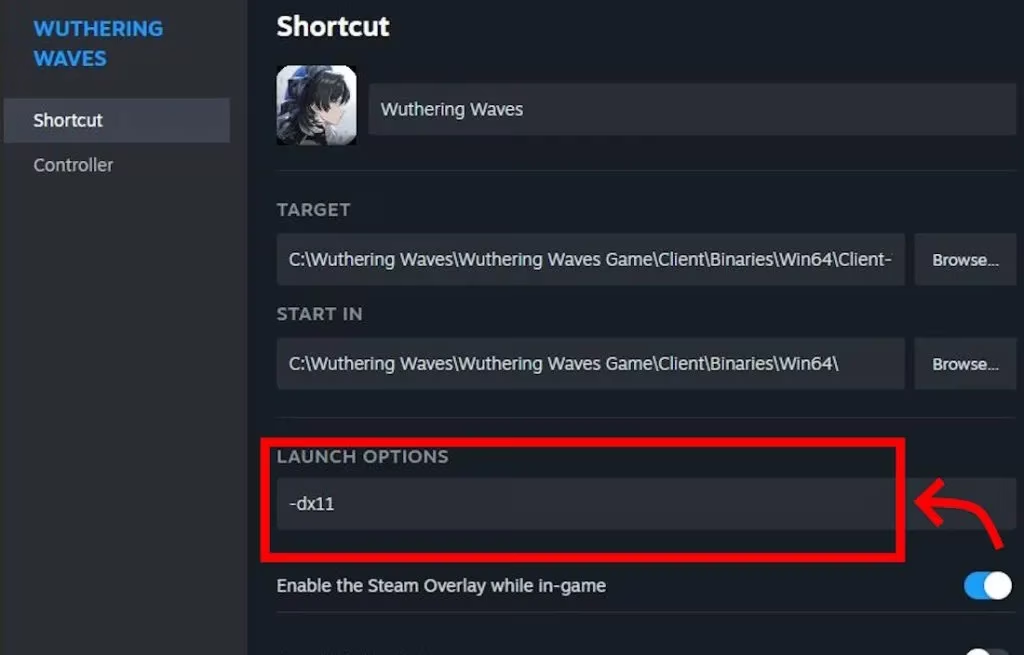
Now run Wuthering Waves through Steam, and hopefully, the fatal error will be a thing of the past.
Summary Table: Which Fix Works Best?
| Fix | Difficulty | Anecdotal Success Rate |
|---|---|---|
| Run launcher directly | 🟢 Easy | ⭐⭐⭐⭐⭐ |
| Verify game files | 🟢 Easy | ⭐⭐⭐⭐ |
| Update DirectX | 🟡 Moderate | ⭐⭐⭐ |
| Update graphics drivers | 🟢 Easy | ⭐⭐⭐⭐⭐ |
| Force DX11 via Steam | 🟡 Moderate | ⭐⭐⭐⭐ |
The Bottom Line
Ultimately, you're stuck trying these solutions until the developers push an official update. Kuro Games has been pretty good about patches, but the UE4 Fatal Error is a hydra—cut off one head, and two more appear. Hold your horses, don't chuck your PC out the window just yet. Try these fixes, and with a bit of luck, you'll be back to farming Echoes and pulling for the latest 5-star character.
Let's be real, folks—PC gaming is a beautiful mess. And if none of these work, well, you can always play on mobile. Just kidding... mostly. Let us know in the comments if any of these methods helped you fix the Wuthering Waves fatal error crashes. And if you have other tricks up your sleeve, share them! Your fellow gamers will thank you.
This discussion is informed by CNET - Gaming, whose reporting often connects PC game crashes with broader system-side issues like outdated graphics drivers, DirectX conflicts, and launcher incompatibilities. In the context of persistent UE4 Fatal Error problems in Wuthering Waves, that perspective reinforces why practical fixes such as updating GPU software, verifying corrupted files, and testing alternative launch methods can meaningfully improve stability before an official patch arrives.