Booting up Wuthering Waves for the first time in 2026 was a total blast—until my screen turned into a slideshow during the tutorial boss. No cap, the stuttering made me want to rage-quit right then and there. After some deep diving and a whole lot of trial and error, I’ve locked in the absolute best settings to make this open-world RPG run like butter on PC. Trust me, once you tweak these, you’ll be pulling off those slick combos without a single hitch.
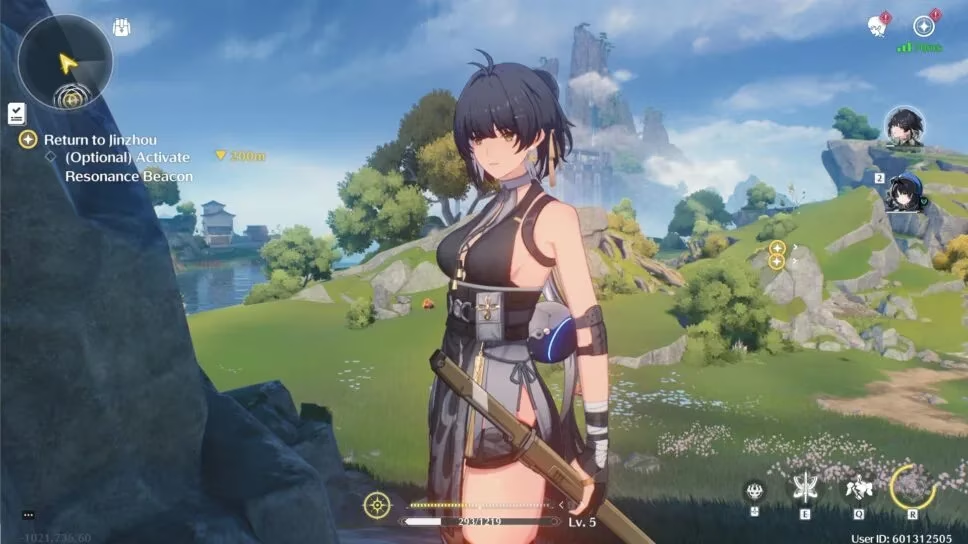
So let’s get down to brass tacks. Wuthering Waves, the action-packed gacha-RPG from Kuro Games, may have launched a couple of years ago, but even in 2026, many players (especially newcomers) still wrestle with unnecessary performance hiccups. Why? Because the game loves to max out its graphics presets right out of the gate, which can choke mid-range rigs and even some high-end machines. Whether you’re a veteran Rover or just hopping into Solaris-3 for the first time, this guide is your one-stop shop for buttery-smooth gameplay. And yeah, while I’m a PC gamer at heart, a lot of these settings will do your mobile device a solid too.
The Core Display Settings: The Low-Hanging Fruit
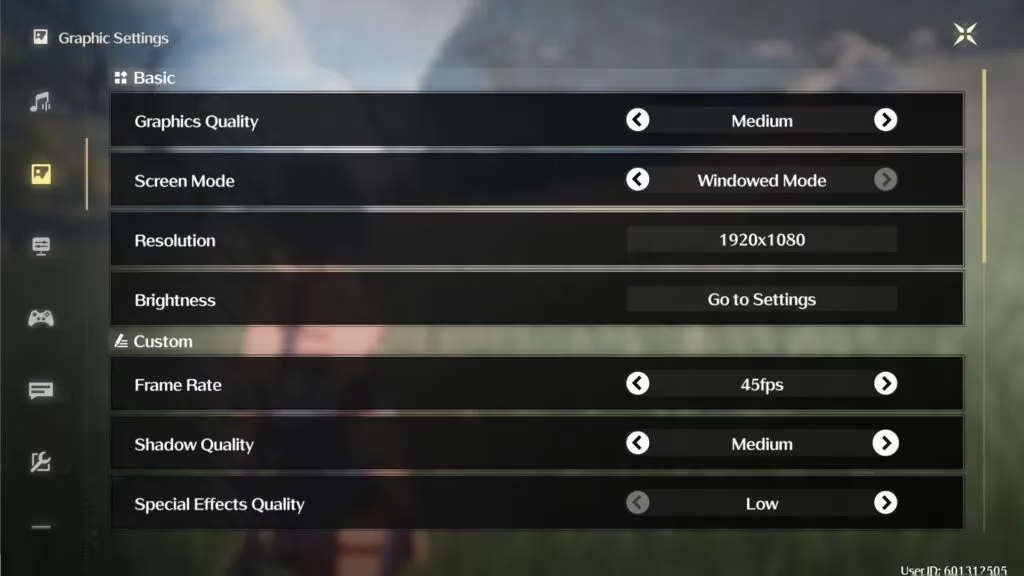
First stop: the Display menu. This is where you can make some massive gains with minimal effort. Here’s the exact setup I’m rocking right now:
-
Graphics Quality: Medium – High or Ultra might look tempting, but the visual bump is negligible while the frame cost is steep. Medium keeps things crisp without torching your GPU.
-
Screen Mode: Windowed Mode – This might sound counterintuitive, but going windowed instead of fullscreen cuts out that annoying stutter when you Alt+Tab (and let’s be real, we’re all guilty of flipping between Discord and the game). It’s a subtle change, but every millisecond counts.
-
Resolution: 1920 x 1080 – Stick to 1080p unless you’ve got a monster rig. It’s the sweet spot for clarity and performance.
-
Brightness: Default – Unless you hate your eyes, leave this alone.
-
Frame Rate: 45fps – I know, I know, the default 60fps is the golden standard. But dropping to 45 gives you a stable, consistent experience, especially during those chaotic multi-enemy fights. The difference in feel is minimal, and you avoid the dreaded 60-to-30 rollercoaster. If you absolutely must have 60, be prepared to lower other settings even more.
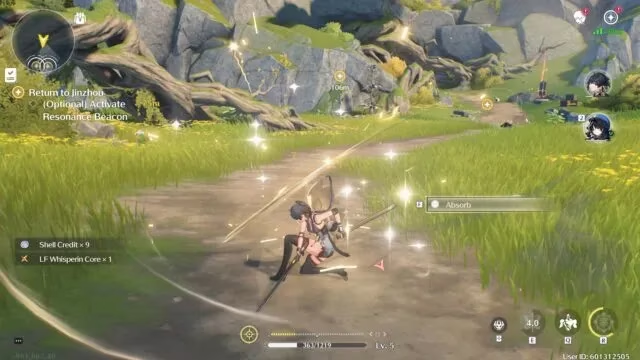
After switching to these display settings, my frame drops in the city of Jinzhou literally vanished. No more teleporting enemies or mid-combo freezes. Low-key, it felt like I upgraded my hardware for free.
Advanced Graphics: Killing the Performance Hogs
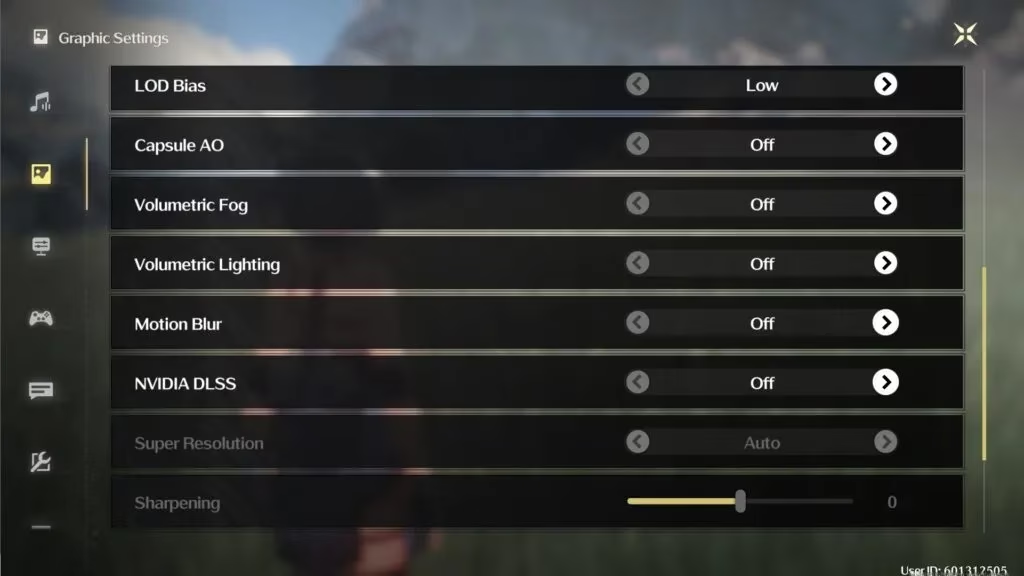
Now for the real MVP section: the Graphics menu. So many options here eat up performance for almost zero visual payoff. I’m looking at you, Volumetric Fog. Here’s how you should set each one:
| Setting | Recommended Value | Why? |
|---|---|---|
| Shadow Quality | Medium | Shadows are important for depth, but Ultra is overkill. Medium keeps them detailed enough without tanking FPS. |
| Special Effects Quality | Low | Flashy skill effects are cool, but they can overwhelm your GPU during ultimates. Low still looks great and frees up a ton of resources. |
| LOD Bias | Low | This controls how detailed faraway objects are. Unless you’re a screenshot connoisseur, keep it low. On a beastly PC, you could go Medium, but Low is the safe bet. |
| Capsule AO | Off | Ambient Occlusion adds subtle shadow depth. Off is barely noticeable and gives a solid FPS lift. |
| Volumetric Fog | Off | Fog looks pretty but is a notorious frame eater. Turning it off can literally give you 10-15 extra frames in misty zones. |
| Volumetric Lighting | Off | Similar to fog—gorgeous but thirsty. Switch it off and you won’t miss it in combat. |
| Motion Blur | Off | This one is personal, but blur during fast camera pans can make stutters feel worse. Off keeps the image sharp. |
| NVIDIA DLSS | Off | DLSS can introduce ghosting in some cases. The game’s native anti-aliasing is solid enough, so I prefer leaving it off. If you’re on a low-tier GPU, you could experiment, but off is the cleanest. |
| Anti-Aliasing | On | Essential! Without it, jaggies make the beautiful world look like a potato. Keep it on to smooth out those edges. |
| V-SYNC | On | Helps prevent screen tearing, especially in windowed mode. The input lag increase is negligible. |
| NVIDIA Reflex | On + Boost (if NVIDIA GPU) | If you’ve got an NVIDIA card, this is a must. It reduces system latency considerably, making dodges and counters feel snappy. No NVIDIA? Just switch it off. |
I’ve been running these exact settings for months now, and the difference is night and day. The combat in Wuthering Waves—those lightning-fast parries and mid-air sequences—demands responsiveness. You can’t afford dropped frames when a Crownless boss is charging at you. With these tweaks, my gameplay went from “meh” to “holy moly that was smooth.”
The Language Lowdown: Voice Packs and Subtitles
While you’re in the settings, you might want to play around with the language options. Kuro Games really delivered here: the game supports a whopping eight text languages and four voice-over languages. I’m a sucker for Japanese VO, but the English cast has grown on me—especially after the post-launch updates polished some of the delivery.
Here’s the full text language lineup:
-
English
-
French
-
German
-
Spanish
-
Japanese
-
Korean
-
Chinese (Simplified)
-
Chinese (Traditional)
And the available voice-overs:
-
English
-
Chinese
-
Japanese
-
Korean
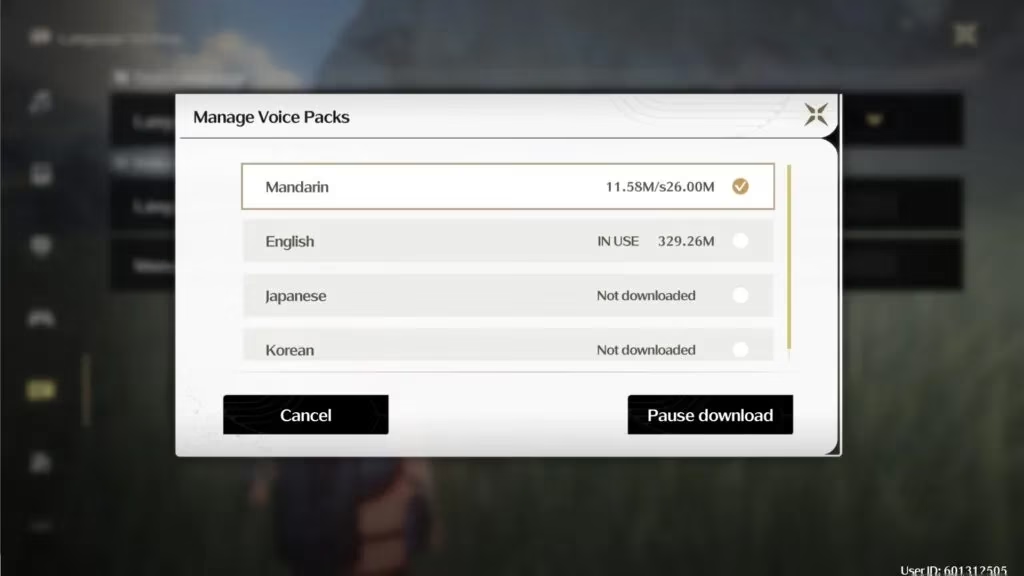
Heads up: if you want to swap the voice-over, you’ll need to download an additional pack. Each one is around 330 MB, so not massive, but make sure you’ve got the space if you’re on a mobile device. I double-dipped and downloaded both Japanese and English for variety—best decision ever during story quests.
Mobile Players, Don’t Sleep on These Tweaks
While the guide above is tailored for PC, my mobile homies can benefit from the same logic. Drop your graphics to Medium, frame rate to 30 or 45, and turn off all those fancy volumetric effects. Your phone will thank you, and you’ll avoid that “frying pan” feeling after a 20-minute session. Also, enabling V-SYNC on mobile can sometimes help with visual tearing, though results vary by device.
The Elephant in the Room: The Stuttering Fix That Went Viral
A while back, the community discovered that simply switching from Fullscreen to Windowed Mode and reducing FPS cap eliminated most stutters. Some players even found that disabling NVIDIA DLSS and Reflex on non-NVIDIA systems (obviously) cleared up weird micro-freezes. That’s why my settings above are the tried-and-true meta. I’ve seen friends with 3060s and 4060s alike praise this exact config. It’s not about having the latest hardware; it’s about outsmarting the game’s default presets.
Final Thoughts: Get Out There and Resonate
Wuthering Waves in 2026 is bigger and better than ever, with new echoes, regions, and characters. Don’t let poor optimization ruin your Resonance Liberation. Take five minutes to copy these settings, then dive back into Solaris-3 with zero lag. Trust—you’ll feel like a whole new Rover. If you’ve got your own secret sauce to make the game run even smoother, drop it in the comments (wherever you find this guide). Now, if you’ll excuse me, I’ve got a hologram boss to humiliate with my butter-smooth parries.
Smooth sailing, folks!