Kuro Game’s open-world action RPG Wuthering Waves has been captivating players since its launch, offering a vast world, fluid combat, and cross-platform progression. While mobile and PC users have enjoyed relatively smooth experiences, Steam Deck owners have faced a more complicated journey. But can you truly take this title on the go with Valve’s handheld? The short answer is yes, but it requires a few clever workarounds — and even in 2026, the situation demands a bit of technical tinkering. Why exactly does Wuthering Waves stumble on Linux-based systems? The culprit is the game’s anti-cheat software, which still lacks native compatibility with Proton. However, the Deck’s flexibility means that with the right tools, you can be exploring Solaris-3 from your couch in no time.
At launch in 2024, Wuthering Waves was notorious for download hiccups and performance snags on all platforms. On the Steam Deck, those issues were magnified by the anti-cheat’s refusal to cooperate with Linux. Fast forward to today, and while Kuro Game has rolled out numerous optimization patches, official Steam Deck verification remains elusive. The game is still marked as “Unsupported” in the Steam store. Does that mean you should abandon hope? Absolutely not. The community-driven solutions that emerged years ago continue to work reliably, and some have even been refined by the Proton ecosystem updates. If you’re willing to spend 15 minutes setting up the environment, you’ll be rewarded with a portable Wuthering Waves experience that rivals the mobile version — but with full controller support and a larger screen.
So, how do you get the game running on the Steam Deck in 2026? There are two primary pathways, both leveraging Windows compatibility layers that fool the anti-cheat into believing it’s operating in its native environment. The first method uses Lutris, a popular game manager that simplifies installing non-Steam titles. The second relies on Proton GE, a custom build of Proton with additional media codecs and patches. A third, supplementary trick involves adjusting the Steam Deck’s VRAM allocation, which can dramatically stabilize performance. Let’s break down each approach.
Method 1: Running Wuthering Waves via Lutris
Lutris acts as a one-stop shop for games from various stores, including the Epic Games Store, where Wuthering Waves has been available. To begin, switch your Steam Deck to Desktop Mode by holding the power button and selecting the option. Open the Discover Shop (the software centre) and search for Lutris. Install it, then launch the application. Within Lutris, you’ll need to connect your Epic Games account. Once that’s done, search for Wuthering Waves in the Lutris database or add it manually. The installer will automatically configure a Wine prefix with the necessary dependencies. After installation, you can add a shortcut directly to your Steam library by right-clicking the game in Lutris and selecting “Create Steam shortcut.” Return to Gaming Mode, and the title should appear in your library. When you hit play, Lutris will handle the compatibility layer in the background, and the anti-cheat should initialize without throwing up the dreaded compatibility error.
Method 2: Proton GE and the Non-Steam Game Workaround
If you already own Wuthering Waves on Steam (or prefer a more integrated approach), Proton GE is your best friend. Head to Desktop Mode again and open the Discover Shop. Install ProtonUp-Qt, a user-friendly tool for downloading custom Proton versions. Launch ProtonUp-Qt, select “Add version,” choose the latest Proton GE release, and install it. Next, return to Gaming Mode but stay in Desktop Mode for now — you’ll need to add the game’s installer as a non-Steam product. Download the official Wuthering Waves installer from the game’s website or through a client like Epic Games. In Steam, go to “Games” > “Add a Non-Steam Game to My Library,” browse to the installer .exe, and add it. Right-click the added shortcut, go to Properties, and under Compatibility, force the use of the Proton GE version you just installed. Run the installer; once the game is fully installed, you’ll need to repeat the process but this time point the non-Steam shortcut to the actual game executable (typically located in the compatdata folder). After that, the game should launch smoothly. Why all the extra steps? Because the anti-cheat needs to see a consistent Windows file structure, and by installing directly through Proton, you give it exactly that.
Method 3: Boosting VRAM for Smoother Performance
Even after getting the game to launch, you might encounter stuttering, low frame rates, or texture pop-in. The Steam Deck shares memory between the GPU and the system, and the default 1GB UMA frame buffer can be a bottleneck for an open-world title like Wuthering Waves. Increasing this to 2GB or 4GB can yield a noticeable improvement without affecting system stability. To do this, completely power off the Deck. Hold the volume up button and press the power button to enter the BIOS. Navigate to Setup Utility, then Advanced Settings. Look for “UMA Frame Buffer Size” and change it from 1GB to your desired value. Save and exit. Please note that this is a system-level change — it won’t hurt your device, but if you dual-boot or run other demanding games, you may want to test different values. Many players report that 4GB makes Wuthering Waves run at a near-locked 30 FPS on medium settings in most areas.
What if you’ve tried all of the above and the game still refuses to cooperate? The first check is to ensure your SteamOS and Proton GE are updated to the very latest versions. Compatibility layers evolve rapidly; a glitch that plagued users last year might already be patched. If crashes occur after the anti-cheat screen, clearing the game’s prefix folder and reinstalling can wipe corrupted configurations. Some Deck owners have found success by launching the game in Desktop Mode first, letting the anti-cheat complete its initialization, and then switching to Gaming Mode for subsequent sessions.
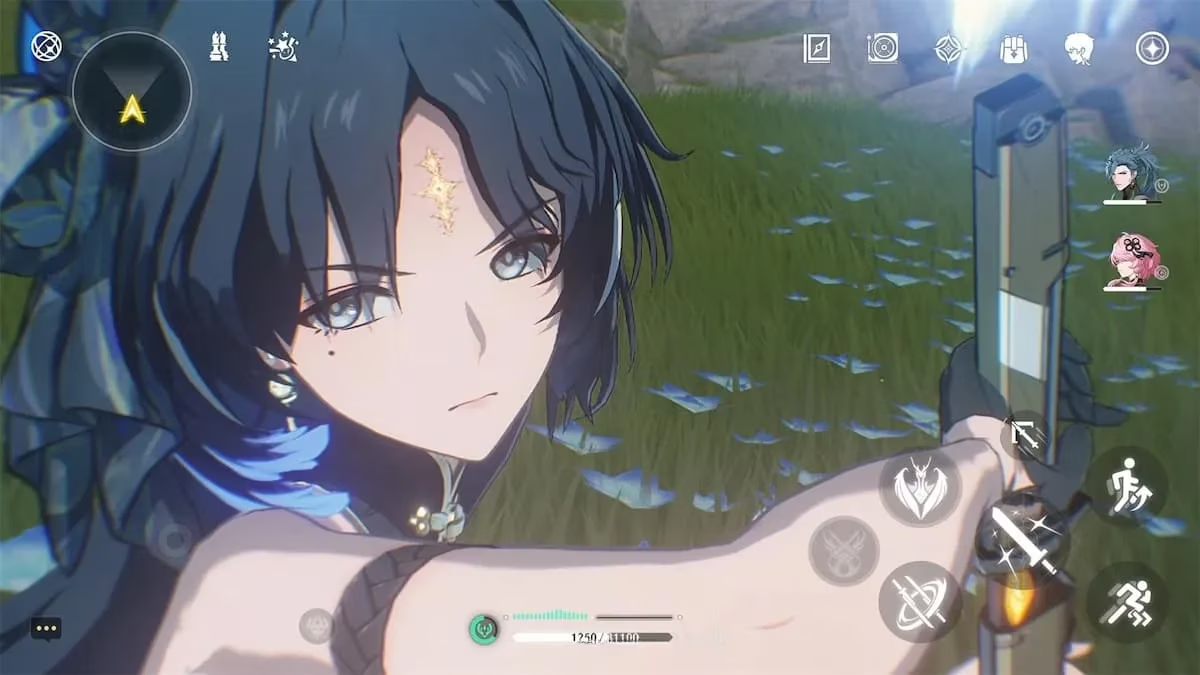
For those who prefer a hassle-free mobile experience, Wuthering Waves remains officially supported on iOS and Android, where it runs natively and accepts controller input via Bluetooth. But let’s be honest — there’s a certain magic in holding the Steam Deck, with its immersive ergonomics and vibrant display, while traversing the post-apocalyptic landscapes of Wuthering Waves. The trade-off is a few extra minutes of setup, but once everything clicks, you’ll forget you ever doubted the Deck’s capabilities. Are there any long-term solutions on the horizon? Kuro Game has not announced native Linux support, but the pressure from the Steam Deck community continues to grow. As the Proton project matures, it’s plausible that anti-cheat solutions like Easy Anti-Cheat or Tencent’s ACE will eventually ship with Proton-friendly modules — after all, we’ve seen it happen with other multiplayer titans. Until then, the Lutris and Proton GE methods remain your golden ticket.
In summary, playing Wuthering Waves on the Steam Deck in 2026 is entirely possible. You’ll need to choose your preferred compatibility layer, perhaps bump the VRAM, and arm yourself with a little patience. The payoff is a rich, portable experience that few mobile games can match. Should you encounter a roadblock, the vibrant Deck community on forums and Discord stands ready with troubleshooting tips. So go ahead, dust off that Deck, and dive headfirst into the world of Wuthering Waves. The journey might be slightly unconventional, but isn’t that the very spirit of handheld PC gaming?